Managed Agent Runs
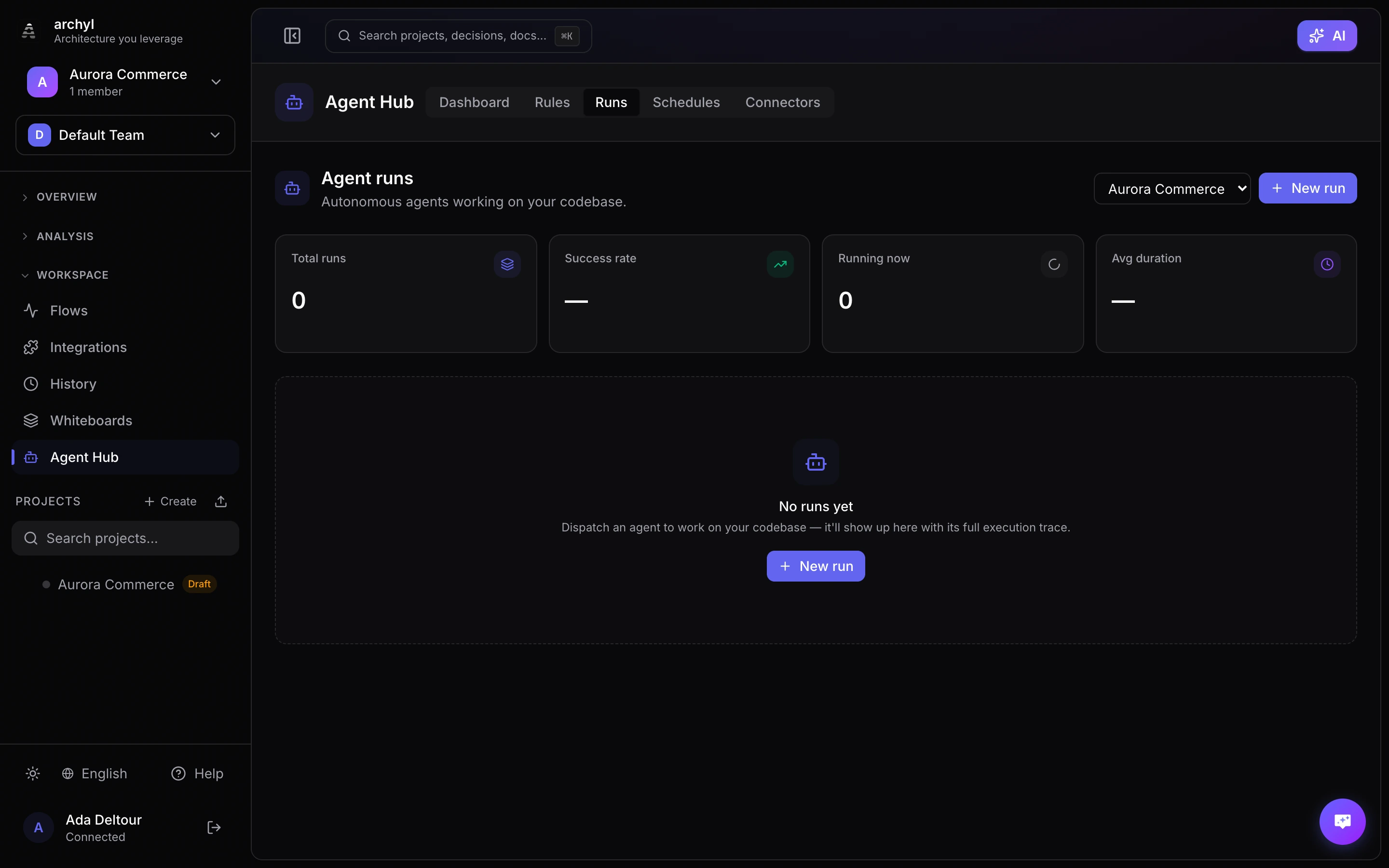
Managed Agent Runs let you dispatch autonomous AI agents directly from Archyl. Give them a task, pick the profile that defines how they behave, connect them to external services via MCP connectors, set a recurring schedule, and let them work on your codebase with full architectural context.
Navigate to Agent Hub → Runs in the sidebar to manage your runs, Agent Hub → Profiles to shape how agents behave, or Agent Hub → Schedules for recurring automation.
Overview
A managed run is a single agent execution. The agent:
- Clones your project's repository into a fresh workspace on the agent worker
- Receives your architectural context (C4 model, ADRs, conformance rules, API contracts, technology stack) plus a work-session briefing: the elements the task touches, what previous sessions learned about them, and the preflight verdict
- Executes the task you defined, calling tools and making decisions within the limits of its profile
- Publishes its code changes as a pull request and reports back with a complete trace of every action
Runs can be triggered manually (one-off) or automatically via schedules.
Starting a Run
- Go to Agent Hub → Runs
- Select your project from the dropdown
- Click New run
- Pick a profile
- Write a task description (e.g., "Check for stale dependencies and create a summary")
- Optionally attach connectors (see below)
- Click Start run
The agent begins working immediately. You can monitor progress in real time on the run detail page.
You can also start a run from Slack or Microsoft Teams with @Archyl run [Project] <task>: the bot follows it in the thread and tells you when it needs you or when it's done. See Launching agent runs from Slack or Teams.
Agent Profiles
A profile is a reusable definition of how an agent behaves. Every run and every schedule uses one. Archyl creates a backend-fixer profile for your organization on first visit; create more in Agent Hub → Profiles.
Deleting a profile keeps the history of the runs it made. Schedules that used it are paused and marked Profile deleted; pick another profile in the schedule to resume it.
| Setting | What it does |
|---|---|
| System prompt | Instructions added to every run of the profile |
| Skills | Built-in playbooks the agent follows (see below) |
| Allowed tools | Glob patterns restricting which tools the agent can call — e.g. read_file, list_*, github__*. Leave empty to allow every tool the run attaches. The platform tools (report_outcome, propose_plan, update_plan, ask_human, open_repository) stay available whatever the list says |
| Max cost | The run stops once its estimated model spend passes this ceiling |
| Max duration | Wallclock limit for the run |
| Max output tokens | Output ceiling for each model call |
| Max input tokens | Lowers the prompt budget of runs on Anthropic models (Archyl's model, Anthropic or Bedrock): older turns are compacted to stay under it, and under 90,000 tokens whatever the setting. OpenAI and OpenAI-compatible runs ignore it and let the provider truncate the context |
Skills
Skills are playbooks maintained by Archyl, kept in step with the tools agents actually have. Enable them per profile instead of copying instructions into the prompt.
| Skill | The agent… |
|---|---|
| Architecture memory | Recalls what previous sessions learned about an element before working on it, and remembers pitfalls and conventions the code alone does not show |
| Conformance first | Checks every file it changed against your conformance rules before finishing |
| Decision records | Files an ADR for decisions an ADR would carry — and only for those |
| Impact analysis | Checks the consumers of an interface before changing it, and names the owning team when a coordinated change is needed |
| Model sync | Updates the C4 model when its change adds, removes or renames a container, component or relationship |
A profile with an unknown skill or an invalid allowed-tools pattern is refused when you save it.
The default backend-fixer profile enables Architecture memory, Conformance first and Decision records.
Run Detail Page
Each run has a detail page showing:
| Field | Description |
|---|---|
| Status | pending, awaiting_approval, running, waiting_for_input, succeeded, failed, or cancelled |
| Elapsed time | How long the agent has been working |
| Heartbeat | When the agent worker last checked in, and the run's deadline |
| Run ID | Unique identifier for traceability |
| Plan | The agent's plan, as a checklist that fills in live |
| Activity | Every action the agent takes, in chronological order |
| Changes | The files the agent wrote, with their diffs and the pull request |
The event feed shows expandable cards for each action:
- Tool calls — Shows the tool name, input parameters, and output. Each card displays a source label indicating which connector the tool came from (e.g.,
github,archyl,linear). - Messages — The agent's reasoning and decisions.
- Result — The outcome, token usage, the pull request, and the files the agent changed.
- Errors — Highlighted for quick identification.
Steering a running agent
While a run is in progress, type a message in the steering box to redirect the agent without cancelling it ("skip the migration, focus on the handler"). The message is queued immediately and injected into the agent's conversation at its next step; the feed shows Steering message delivered to the agent once the agent has received it.
When a run stops early
If a run fails, hits its cost or time limit, or runs out of iterations, the work it already did is not thrown away: Archyl publishes it as a draft pull request that says why the run stopped. See Pull request below. A run you cancel publishes nothing.
Reliability guarantees
- Dead workers are detected. The agent worker checks in every 10 seconds. A run whose worker has been silent for 3 minutes, or that is still running 10 minutes past its time limit, is marked
failedautomatically and its seat is released. - Stuck runs don't hold seats. A run no agent worker picked up within 10 minutes fails, and so does a run that waited for a human reply for more than 1 hour and 10 minutes.
- Credentials don't outlive runs. Each run gets its own short-lived Archyl API key, revoked as soon as the run ends.
- Cancel reaches the agent. A cancelled run stops at its next check-in even if the direct stop request never reached the worker.
Work sessions and coordination
Every run is wrapped in an Archyl work session, the protocol the Archyl Harness gives local coding agents. The platform opens and closes the session; the agent never manages it.
The run's work session
When a run starts, Archyl opens a session on the architecture elements the task touches. It takes leases on those elements, computes the preflight gate verdict (allow, warn or deny), and puts the relevant decisions, guardrails and memories in the agent's briefing. The verdict shows up in the event feed as a Gate event.
Respecting other agents' work
Respect other agents' work is a profile setting under Coordination, off by default. When it is on, the session is opened exclusively:
- Someone else holds the elements. If another agent holds a lease on the same elements, whether a coding agent such as Claude Code or another managed run, the run is refused. The reason names who is working there.
- The gate only warns, for example because an error-level guardrail applies. The run waits in Awaiting approval without taking a concurrency seat. The run page lists the reasons, with Approve and start and Cancel run.
Approving checks the gate again, so a conflict that appeared in the meantime still refuses the run. A run nobody approves within 24 hours is cancelled.
With the setting off, the run starts whatever the gate says; the agent reads the reasons in its briefing.
Guard on file writes
Whenever the agent works in a repository, linked to the project or opened through the GitHub connector, every write_file and edit_file call is checked against the project's conformance rules before the change lands:
| Violation | Effect |
|---|---|
critical |
The write is refused. The agent sees which rule it broke and fixes the change |
high |
The write goes through, with a warning to the agent |
If the check itself fails, the write goes through: the Guard never blocks an agent on its own errors. It behaves like the Guard hook for local coding agents, described in the harness guide.
Work session outcome
Before finishing, the agent reports its outcome: a summary, its decisions, follow-ups and the memories it relied on. When the run ends, Archyl:
- Attributes the changed files to the session, which shows the leased elements real work landed on
- Closes the session and stores the summary as memory on those elements
- Records the decisions as project memory and opens a draft Architecture Change Request for review. Only a succeeded run records decisions
The run page shows a Work session outcome card with the summary, decisions, follow-ups, the elements touched and a link to the Change Request. Elements another session holds are flagged Held by another work session.
Following a run live
A run page has two views: Activity, the event feed, and Changes, the files the agent wrote. When the agent needs you, a banner above them says what it is waiting for (Waiting for your plan review or The agent has a question) and takes you there.
The plan
Before it changes anything, the agent shares a plan: a one-sentence summary and a handful of concrete steps, 12 at most. The Plan panel at the top of the run page turns it into a checklist. The agent marks each step In progress, Done or Skipped, sometimes with a short note, and the panel shows the step it is on and the progress (3/7).
Review the plan first is a profile setting under Coordination, off by default. When it is on, the agent waits for a review before it changes anything:
- The panel switches to Review the plan. You can rename steps, add details, and add, remove or reorder steps.
- Approve plan (Approve edited plan once you edited it) lets the agent go ahead. Your edited version is the plan the agent follows and the checklist tracks.
- Request changes sends your feedback. The agent revises the plan and proposes a new revision for you to review. Earlier revisions stay in the feed.
Until a plan is approved, the agent can read but not change anything: writing files, and any tool that creates, updates, deletes, links, imports, pushes or merges (on Archyl and on every connector, e.g. linear__create_issue), are refused, and so is remember. The agent is told to wait for the review.
Questions
When a decision needs a human, such as an ambiguous requirement, a trade-off with no clear winner or something destructive, the agent asks. The question appears above the feed with Suggested answers when the agent offers some, and a free-text answer box (Cmd/Ctrl + Enter sends it). Anyone who can edit the project can answer, and the feed records who did.
The agent asks at most 5 questions per run, and is told never to ask for something it can look up.
Waiting for you
While the agent waits for a plan review or an answer, the run shows Waiting for you and is listed under Needs you in the run list, with the runs held in Awaiting approval.
- The wait does not count against the run's time limit: its deadline moves back by the time spent waiting. The run keeps its concurrency seat.
- A question nobody answers within an hour: the agent continues on its own judgment and states the assumption in its outcome.
- A plan nobody reviews within an hour: the run fails, without having changed anything.
Where the agent works
The agent reads and changes code in its workspace, a clone of the repository:
- Repository linked to the project: Archyl clones it when the run starts.
- No linked repository, GitHub connector attached: the agent clones the repository the task is about itself, with the connector's credentials, before it touches any file. Only GitHub's hosted MCP server (
api.githubcopilot.com) is supported. The connector must authenticate with anAuthorization: Bearerheader, and its token needs access to the repository.
Once a workspace is open, the agent changes files only there: pushing files or opening pull requests through connector tools is refused. That is what puts every change through the Guard, into the Changes view and into a single pull request.
Changes
Changes lists every file the agent writes, as it writes it: Added, Modified or Blocked, with the lines added and removed per file and for the whole run. Select a file to see what each write changed.
- A write the Guard refused is Blocked: the diff shows what the agent tried to write, with the rule it broke. A write the Guard only flagged goes through, with a warning on the file.
- Long diffs are cut after 600 lines, and files over 128 KB are listed without a diff.
Commenting a line
Review the diff while the agent works. In Changes, click a line number to comment on that line, then Send to agent (Cmd/Ctrl + Enter). The agent gets the file, the line and its content, addresses the comment, then carries on with its plan.
- A comment shows under its line, Queued until the agent reads it, then Delivered. It also appears in Activity, and each file shows how many comments it has.
- You can comment on added, unchanged and removed lines. Writes the Guard blocked take no comments.
- Comments are accepted while the agent works or waits for you. A comment still Queued when the run ends shows Not delivered.
On a run that has ended, a comment becomes a note for the next run: Add to follow-up keeps it in your browser, and the bar above the files (3 comments for a follow-up) continues the run with them (Continue with them).
Pull request
When the run ends, Archyl commits the workspace changes on a branch named archyl/agent- followed by the first 8 characters of the run ID, and opens a pull request against the branch the clone started from. Its link appears at the top of Changes (Open pull request) and in the result.
| How the run ends | What Archyl publishes |
|---|---|
| Succeeded | A pull request |
| Failed, or stopped by its time or cost limit | A draft pull request that says why the run stopped |
| Cancelled | Nothing |
On GitLab the draft is a Draft: merge request. On Bitbucket the branch is pushed without a pull request. A run that changed no files publishes nothing.
Pull requests are opened on github.com, gitlab.com and bitbucket.org. Archyl only sends your Git credentials to those hosts: a repository on a self-hosted Git server (GitHub Enterprise, a private GitLab, Azure DevOps, Gitea) is cloned without credentials, so a private one cannot be cloned, and no pull request is opened.
Continuing a run
A run that has ended, whatever its outcome, offers two buttons:
- Continue starts a new run that picks up this run's work. Write what the agent should do next: your follow-up comments prefill the instructions, one per line (
path:line — comment). The profile defaults to the run's, and you can pick connectors. - Run again opens the start dialog with the same task and profile, for a new run from scratch.
A continuation knows what the previous run was asked and what it did. It starts from the branch that run published, commits on it and adds its changes to the same pull request instead of opening another. When the previous run pushed its branch without opening a pull request, the continuation opens one, against the branch a new run would target. If the previous run opened a repository through the GitHub connector, the continuation opens it again on that branch.
- When the branch no longer exists (merged and deleted, for example), the continuation starts from the branch a new run would start from, the project's linked branch or the repository's default branch, and opens a new pull request. The feed says so.
- A draft pull request stays a draft: mark it ready for review once the work is done.
- Archyl only continues on branches its agents created, never on yours.
The new run's page links to the run it follows (Continues run), and the previous run links to its follow-ups (Continued in). A run still in progress can't be continued: comment on its lines instead.
MCP Connectors
Connectors let you attach external services to your agent runs. Any service that exposes an MCP (Model Context Protocol) server can be connected.
Supported Services
| Service | Capabilities |
|---|---|
| GitHub | Read PRs, check CI status, list issues, review code |
| GitLab | Same capabilities for GitLab-hosted projects |
| Linear | Read/update issues, check sprint progress |
| Slack | Post messages, read channels, notify teams |
| Custom | Any MCP-compatible server |
Creating a Connector
- Go to Agent Hub → Connectors
- Click New connector
- Enter a name (e.g., "github")
- Paste the MCP server URL
- Add authentication headers if required
- Click Create connector — Archyl probes the server and displays available tools
Tool Namespacing
When a connector is attached to a run, its tools are prefixed with the connector name:
| Connector | Tool example |
|---|---|
github |
github__list_pull_requests |
linear |
linear__get_issue |
slack |
slack__post_message |
Tools from Archyl's built-in MCP server are unprefixed (e.g., get_agent_context, list_conformance_rules).
This namespacing ensures no tool name collisions, makes the event feed easy to scan, and lets a profile's allowed tools target a whole connector with a single pattern such as github__*.
Schedules
Schedules let you define recurring agent runs using standard cron expressions.
Creating a Schedule
- Go to Agent Hub → Schedules
- Click New schedule
- Pick a profile and write the task description
- Select a cron expression (presets available or enter a custom one)
- Attach connectors if needed
- Click Create schedule
Schedule Management
Each schedule displays:
- Cron expression — When the agent runs
- Next run — When the next execution is scheduled
- Last run — When the agent last ran
- Status — Active or paused, or Profile deleted when its profile was deleted
You can:
- Pause a schedule without deleting it
- Resume a paused schedule
- Run now — Run immediately outside the normal cadence
- Edit the task text, cron expression, or attached connectors
- Delete the schedule
A schedule whose profile was deleted stays paused: resuming it or Run now is refused until you edit the schedule and pick another profile.
Example Schedules
| Use case | Cron expression | Description |
|---|---|---|
| Weekly architecture review | 0 9 * * 1 |
Every Monday at 9am |
| Daily dependency audit | 0 7 * * * |
Every day at 7am |
| Weekly documentation sync | 0 14 * * 5 |
Every Friday at 2pm |
Architectural Context
Every managed run automatically receives access to your Archyl project's MCP server. The agent can:
- Query the C4 model to understand system boundaries
- Read ADRs to understand past architectural decisions
- Check conformance rules to know which patterns to follow
- Browse API contracts to understand service interfaces
- Look up technology assignments to pick the right tools
- Recall and remember facts about elements through architecture memory
This context is injected before the agent starts working — it doesn't need to discover your architecture from scratch. Each run is also wrapped in a harness work session, so its outcome becomes memory for the elements it touched.
AI Provider
Runs use the model managed by Archyl unless your organization has Bring Your Own AI Provider enabled. With BYO enabled, runs execute on your provider with your credentials — Anthropic, AWS Bedrock, OpenAI, or an OpenAI-compatible endpoint that implements the Responses API. Google Gemini cannot run managed agents yet: runs are refused with an explicit message rather than silently using Archyl's model.
Quotas and Concurrency
Managed Agent Runs are available on Scale and Custom plans. Usage is tracked per organization with monthly quotas, displayed at the top of the Runs and Schedules pages. Continuing a run and approving a held run count as runs too. Organizations with BYO AI enabled are not counted against the quota, for manual and scheduled runs alike. Once the quota is used up, runs are refused until the next period, unless the organization owner has turned on AI pay-as-you-go: runs then continue and their tokens are billed, up to a monthly cap.
Each active run (pending, running or waiting_for_input) occupies one of your organization's concurrent run seats. A seat is freed the moment a run ends, whatever the reason.
Best Practices
- Be specific in task descriptions — "Check for Go packages with known CVEs and list them with severity" works better than "check dependencies"
- Give each job its own profile — A read-only reviewer with
allowedToolslimited tolist_*,get_*andread_filecannot modify anything by accident. - Attach only needed connectors — Each connector adds tools to the agent's context. Fewer tools means more focused execution.
- Start with manual runs — Test your task description with a one-off run before creating a schedule.
- Use conformance rules together — Define guardrails first, then enable the Conformance first skill so runs validate against them automatically.