Architecture Insights
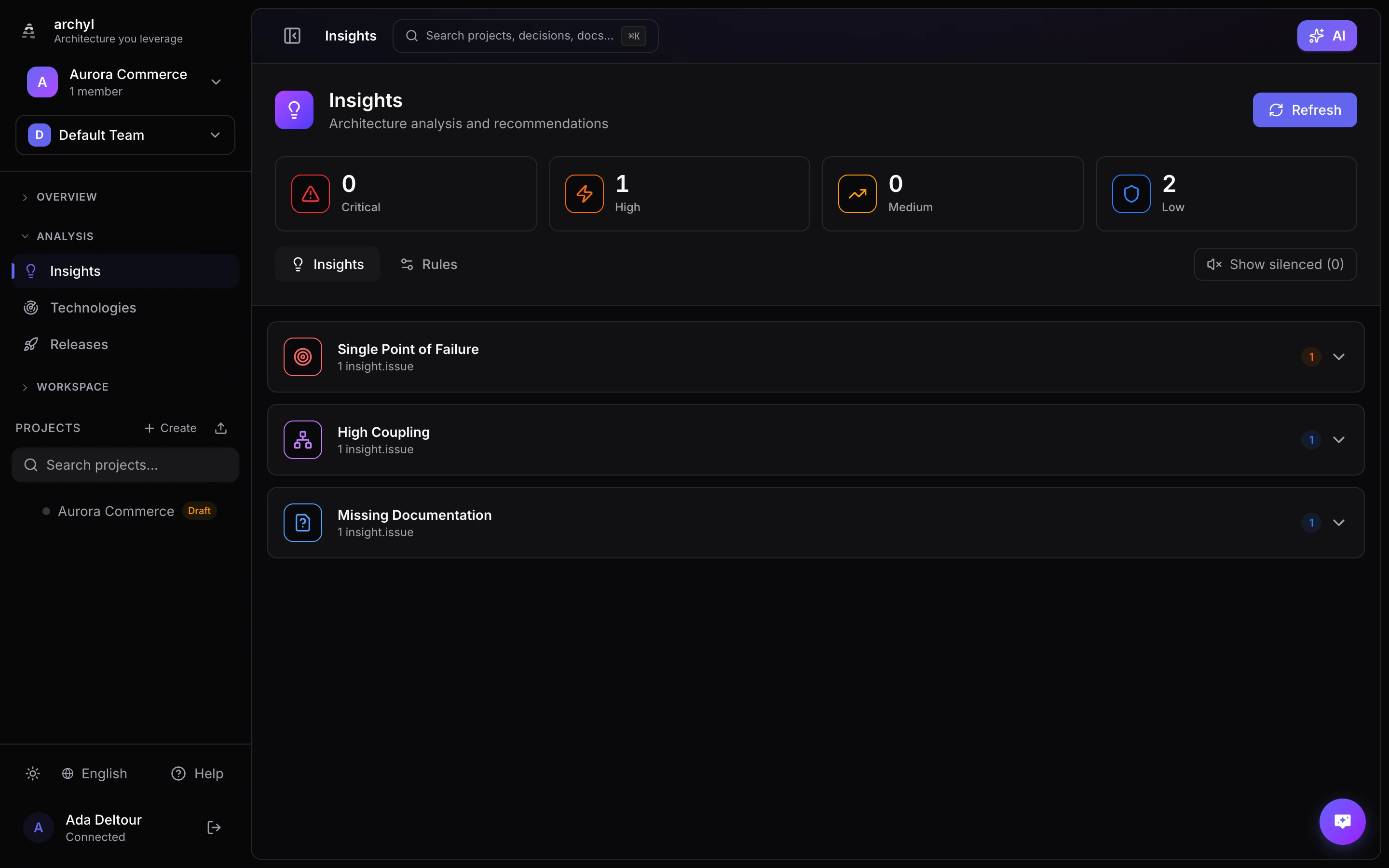
Archyl's AI-powered analysis detects potential architectural issues and provides recommendations to improve your system design.
What Insights Does Archyl Detect?
Critical Issues
| Issue | Description |
|---|---|
| Single Point of Failure (SPOF) | Elements with too many dependencies that could cause system-wide failures |
| Security Issues | Direct database access from external systems, missing security boundaries |
| Circular Dependencies | Dependency cycles that complicate maintenance and deployment |
High Priority
| Issue | Description |
|---|---|
| High Coupling | Components with excessive connections to other components |
| Over-connected Elements | Elements with too many inbound or outbound relationships |
| Missing Redundancy | Critical services without backup or failover mechanisms |
Medium Priority
| Issue | Description |
|---|---|
| Orphan Elements | Isolated elements with no relationships to other components |
| Missing Documentation | Elements without descriptions or linked documentation |
| Inconsistent Naming | Elements that don't follow naming conventions |
Low Priority
| Issue | Description |
|---|---|
| Optimization Opportunities | Potential improvements to reduce complexity |
| Best Practice Suggestions | Recommendations based on C4 model conventions |
Running Architecture Analysis
Single Project Analysis
- Go to the Insights section from the sidebar
- Select your project
- Click Analyze
- Wait for analysis to complete
- Review findings by severity
Organization-Wide Analysis
To analyze all projects at once:
- Go to Insights from the main navigation
- Click Analyze All Projects
- Review aggregated findings across your organization
Understanding Insights
Each insight includes:
Severity Level
- Critical: Requires immediate attention
- High: Should be addressed soon
- Medium: Consider addressing when possible
- Low: Nice to have improvements
Affected Elements
The insight lists all elements involved, with direct links to view them in the diagram.
Recommendations
Actionable steps to resolve the issue:
Recommendation: Add a caching layer between the API Gateway
and the Database to reduce direct database connections and
improve resilience.
Related Documentation
Links to relevant best practices and architectural patterns.
Managing Insights
Silencing Insights
If an insight is intentional or a false positive:
- Click on the insight to expand it
- Click Silence this insight
- Optionally add a reason
- The insight will be hidden from the main view
Viewing Silenced Insights
To review silenced insights:
- Go to the Insights section
- Toggle Show silenced
- Review and optionally unsilence items
Bulk Actions
Select multiple insights to:
- Silence all selected
- Assign to team member
- Export as report
Best Practices
Regular Analysis
- Run analysis after major architecture changes
- Include insights review in sprint planning
- Track insight trends over time
Prioritize by Impact
Not all insights need immediate action:
- Focus on Critical and High severity first
- Consider business impact when prioritizing
- Document intentional deviations
Share with Team
- Export insights reports for architecture reviews
- Assign insights to team members
- Track resolution in your project management tool
Common Insights and Solutions
Single Point of Failure
Problem: One service handles all authentication.
Solution:
- Add redundant auth service
- Implement circuit breaker pattern
- Use distributed session storage
High Coupling
Problem: Frontend directly calls 10+ backend services.
Solution:
- Introduce API Gateway
- Implement Backend for Frontend (BFF) pattern
- Use event-driven communication
Circular Dependencies
Problem: Service A depends on B, B depends on C, C depends on A.
Solution:
- Extract shared logic to new service
- Use event-driven architecture
- Refactor to break the cycle
Orphan Elements
Problem: Database with no connections shown.
Solution:
- Add relationships to services that use it
- Remove if no longer used
- Link to documentation explaining usage
Customizing Insight Rules
Every organization has different architecture standards. Archyl lets you customize the rules that generate insights to match your team's requirements.
Accessing Rule Settings
- Go to the Insights section
- Click the Rules tab
- Adjust settings for each rule
- Click Save to apply changes
When you save changes, Archyl automatically re-analyzes your architecture with the new configuration.
Available Rules
Single Point of Failure (SPOF)
Detects elements with too many incoming dependencies that could cause system-wide failures if they go down.
| Setting | Range | Default |
|---|---|---|
| Threshold | 1-20 | 3 |
Raise the threshold if your architecture intentionally centralizes certain concerns. Critical infrastructure like databases receive extra scrutiny regardless of your threshold setting.
High Coupling
Identifies components with excessive connections in either direction.
| Setting | Range | Default |
|---|---|---|
| Incoming threshold | 1-50 | 4 |
| Outgoing threshold | 1-50 | 6 |
The incoming threshold catches elements that many other components depend on. The outgoing threshold catches elements that depend on too many other components. Platform teams building shared libraries may want higher thresholds than product teams.
Over-connected Elements
Flags elements with too many total connections (incoming + outgoing combined).
| Setting | Range | Default |
|---|---|---|
| Threshold | 2-100 | 8 |
This catches a different problem than high coupling: components that are hard to reason about because they touch too many parts of the system.
Circular Dependencies
Detects dependency cycles where A depends on B, B depends on C, and C depends on A.
| Setting | Options |
|---|---|
| Enabled | On/Off |
Circular dependencies complicate testing, create initialization headaches, and signal unclear boundaries. Most teams leave this enabled.
Orphan Elements
Finds architecture elements with no connections to other components.
| Setting | Options |
|---|---|
| Enabled | On/Off |
Orphan elements might indicate documentation gaps or deprecated services that should be removed.
Security Issues
Detects concerning patterns like external systems with direct database access.
| Setting | Options |
|---|---|
| Enabled | On/Off |
These findings are critical severity and most teams want to know about them immediately.
Missing Documentation
Reports elements without descriptions.
| Setting | Range | Default |
|---|---|---|
| Component limit | 1-500 | 20 |
To avoid overwhelming reports on large codebases, documentation checks for components only run if your total component count is below this threshold. Systems and containers are always checked.
Organization-Wide Settings
Insight rules apply across your entire organization, not per-project. This ensures consistent governance standards across all teams and projects.
Resetting to Defaults
Click Reset to defaults in the Rules tab to restore all rules to their original configuration.
Next Steps
- AI-Powered Discovery - Keep architecture up to date
- Documentation - Document architectural decisions
- Export - Export insights reports