Technology Radar
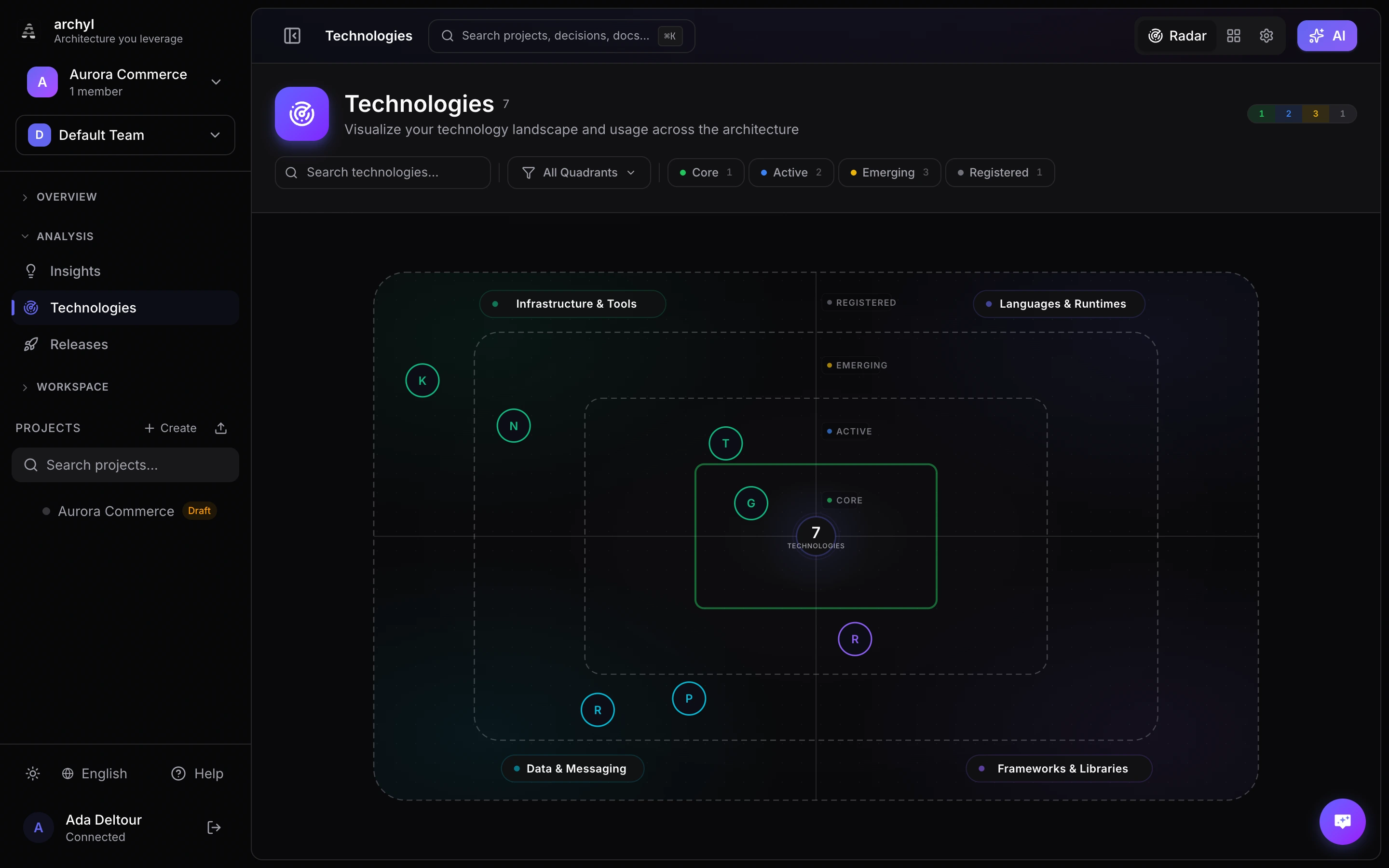
The Technology Radar gives you a visual overview of every technology used across your architecture. Technologies are automatically categorized into quadrants and ranked by adoption level based on actual usage in your C4 elements and relationships.
Core Concepts
Technologies
A technology represents any tool, language, framework, or service used in your architecture. Each technology has:
| Field | Description |
|---|---|
| Name | Display name (e.g., PostgreSQL, React, Kubernetes) |
| Category | Classification that determines its radar quadrant |
| Description | Optional notes about usage or purpose |
| Icon | Optional logo for visual identification |
Quadrants
Technologies are grouped into four quadrants based on their category:
| Quadrant | Categories |
|---|---|
| Languages | Programming languages, runtimes |
| Frameworks | Frameworks, libraries |
| Data | Databases, message brokers, object storage |
| Infrastructure | Cloud services, DevOps tools, transport protocols, other |
Adoption Rings
Each technology is placed in a ring based on how widely it's used across your architecture:
| Ring | Criteria | Meaning |
|---|---|---|
| Core | Used in 4+ elements/relationships | Foundational technology, deeply embedded |
| Active | Used in 2–3 elements/relationships | Actively adopted, growing usage |
| Emerging | Used in 1 element/relationship | Recently introduced, being evaluated |
| Registered | Not yet linked to any element | Catalogued but not in active use |
Views
Radar View
The default view. Technologies appear as dots on a radar chart, positioned by quadrant and ring. This gives an at-a-glance picture of your technology landscape.
Interactions:
- Hover over a dot to see the technology name and highlight related technologies
- Click a dot to open the detail panel
- Click a quadrant label to filter to that quadrant
Table View
A structured list of all technologies grouped by quadrant and ring. Each entry shows the technology name, icon, and a usage bar indicating relative adoption.
Switch to table view from the view selector in the header. This view is useful for reviewing technologies systematically or during architecture review meetings.
Management View
The administration view for creating, editing, and deleting technologies.
Access it from the view selector or navigate to /technologies/management.
Adding Technologies to Elements
Technologies are linked to C4 elements and relationships, which is what drives the radar positioning.
From the Element Panel
- Select any system, container, or component on the diagram
- Open the element detail panel
- In the Technologies section, search and select technologies
- Changes are saved immediately
From Relationships
- Click on a relationship (edge) between two elements
- In the relationship panel, find Technologies
- Add relevant technologies (e.g., the protocol or framework used for communication)
During AI Discovery
When you run AI-powered discovery on a repository, Archyl automatically detects technologies from your codebase and links them to the discovered elements.
Managing Technologies
Creating a Technology
- Navigate to Technologies → Management view
- Click Add technology
- Fill in name, category, and optional description
- Upload a logo image if desired
- Click Create
Editing a Technology
- In the Management view, find the technology in the list
- Click the Edit button (pencil icon)
- Modify name, category, description, or logo
- Click Save changes
Deleting a Technology
- In the Management view, click the Delete button (trash icon) on the technology row
- Confirm the deletion
Deleting a technology removes it from all linked elements and relationships.
Detail Panel
Click any technology in the radar or table view to open the detail panel. It shows:
Usage Statistics
- Elements: How many C4 elements use this technology
- Relationships: How many relationships reference it
- Adoption level: A percentage bar relative to your most-used technology
Associated Technologies
Technologies that frequently appear alongside the selected one. This reveals natural pairings in your stack — for example, if React and TypeScript often appear together.
Related Elements
A list of every system, container, or component that uses this technology. Click any element to navigate directly to it on the diagram.
Searching Technologies
From the Radar Page
Use the search field in the header bar to filter technologies by name or category. Combine with quadrant and ring filters to narrow results further.
From Global Search
Press Cmd+K (or Ctrl+K) to open the global search. Type a technology name — matching technologies appear with a Technology badge. Selecting one navigates you to the Technologies page with the search pre-filled.
Filtering
Quadrant Filter
Click the quadrant dropdown to show only technologies from a specific quadrant (Languages, Frameworks, Data, or Infrastructure).
Ring Filter
Click any ring pill (Core, Active, Emerging, Registered) to filter by adoption level. The ring distribution bar in the header also acts as a clickable filter.
Combined Filters
All filters work together. For example, filter to "Frameworks" quadrant + "Core" ring to see your most critical framework dependencies.
Active filters appear as removable chips below the filter bar. Click Clear all to reset.
Best Practices
Keep the Catalog Current
- Add technologies as you adopt them
- Remove deprecated technologies
- Update categories if a tool's role changes
Link Technologies Consistently
- Apply technologies at the right C4 level — languages and frameworks on containers/components, infrastructure on systems
- Tag relationships with the protocol or transport used (e.g., gRPC, REST, AMQP)
- Be specific — prefer "PostgreSQL" over "SQL Database"
Use the Radar for Governance
- Review the radar during architecture review meetings
- Technologies in the Emerging ring are candidates for team evaluation
- Technologies in the Registered ring with no usage may be candidates for removal
- A healthy radar has most technologies in Core or Active
Leverage Associated Technologies
- Use the "associated with" data to understand technology clustering
- Identify unexpected pairings that may indicate inconsistency
- Spot standardization opportunities when similar technologies serve the same purpose
Next Steps
- AI-Powered Discovery — Automatically detect technologies from code
- Architecture Insights — Get recommendations on your architecture
- Elements & Styling — Learn about C4 elements