Slack & Teams Bots
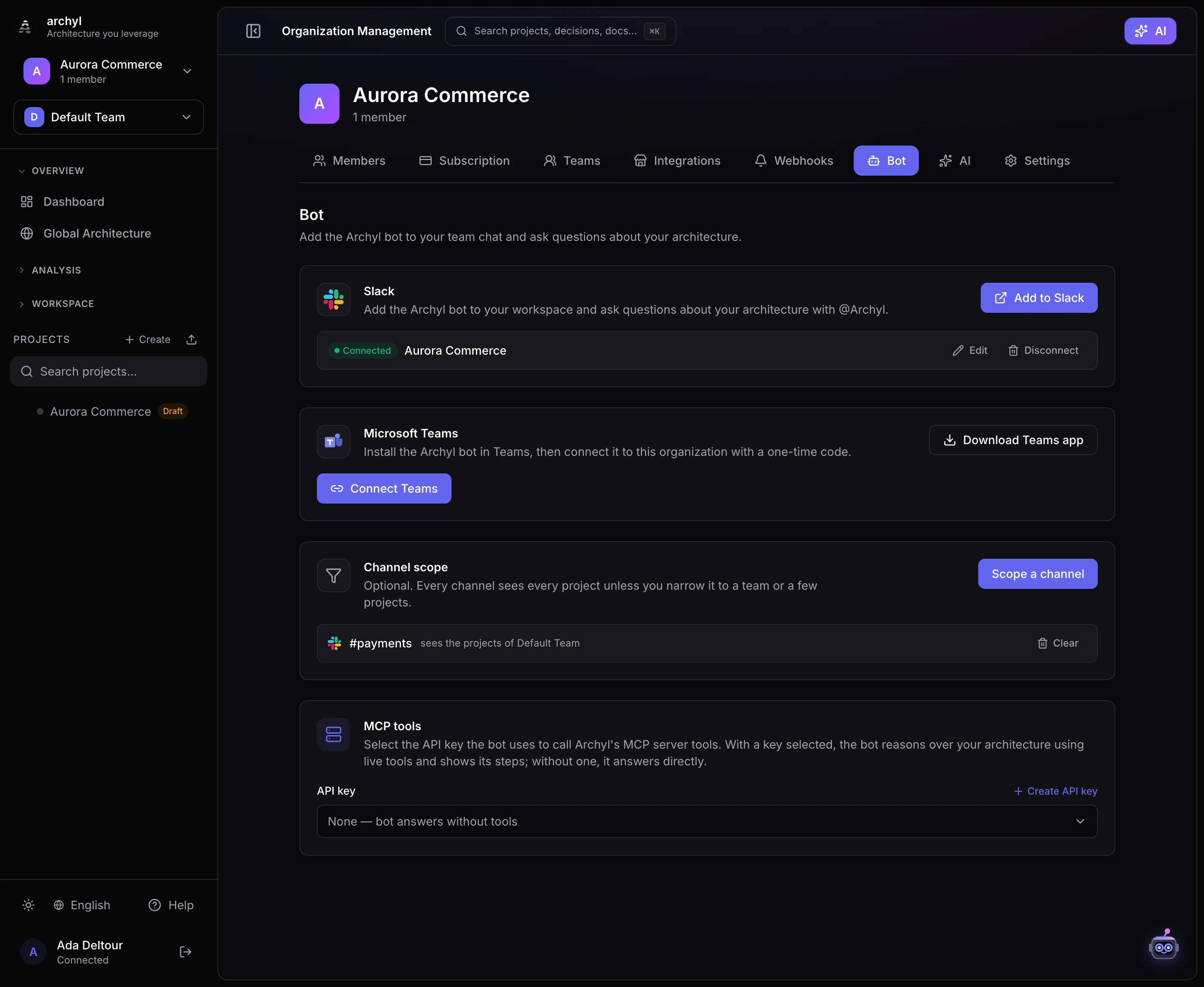
Bring Archyl into the tools your team already lives in. Mention @Archyl in Slack or Microsoft Teams and ask questions about your software architecture — the C4 model, ADRs, dependencies, ownership and more — and get answers grounded in your real data, right in the channel.
Overview
The bot is connected per organization. Once an admin connects a workspace, anyone in it can ask the bot questions by mentioning it. The bot answers using the permissions of the admin who connected it, and its scope is your organization's projects.
By default that scope is every project in the organization. An admin can narrow any channel to a team or a set of projects — see Scoping a channel to a team or projects below.
There are two ways the bot answers:
| Mode | When | What you see |
|---|---|---|
| Direct | No API key selected | A single AI answer built from your architecture context. |
| Agentic (MCP tools) | An API key is selected | The bot calls live MCP tools to look things up and act, and shows the steps it takes (🔧 …) before the final answer. |
You switch between them by selecting an API key in Organization → Bot → MCP tools (see Enabling MCP tools below).
Connecting Slack
- In Archyl, go to Organization → Bot.
- Click Add to Slack. You'll be taken to Slack to authorize the Archyl app and pick a workspace.
- After approving, you're returned to Archyl and the workspace appears under Connected.
- In Slack, invite the bot to a channel and mention it:
@Archyl what depends on the payments service?
The bot replies in a thread to keep channels tidy. Mention it again (in the channel or inside the thread) to ask a follow-up.
- Edit re-runs the Slack install (refresh the connection).
- Disconnect removes the integration.
Connecting Microsoft Teams
Teams uses an app package and a one-time linking code.
- In Archyl, go to Organization → Bot and click Download Teams app to get
archyl-teams-app.zip. - In Teams, install the app: Apps → Manage your apps → Upload a custom app, and select the
.zip. (If you don't see that option, a Teams admin must allow custom app uploads or upload it to your org's app catalog.) - Back in Archyl, click Connect Teams. You'll get a code like
@Archyl link 6GXH6NKL. - In Teams, send that exact message to the Archyl bot (in a 1:1 chat, just
link 6GXH6NKL). The bot replies ✅ Connected to your Archyl organization. - Now mention it with questions:
@Archyl which team owns the API gateway?
The link code is valid for 15 minutes and is single-use. Generate a fresh one anytime from the Bot tab.
Note: Microsoft Teams bots require a work or school (Microsoft 365) account — they don't work with personal Microsoft accounts.
Enabling MCP tools (agentic mode)
By default the bot answers directly from your architecture context. To let it use live MCP tools — looking projects up by name, tracing dependencies, creating ADRs or documentation, and more — give it an API key:
- Create an API key under Profile → API Keys (or reuse an existing one).
- Go to Organization → Bot → MCP tools and select that key.
- That's it — the next time someone mentions the bot, it reasons over your architecture with the MCP server tools and shows each action it takes before answering.
Scope matters:
- A read key lets the bot look things up but not change anything.
- A write key additionally lets it create or update elements, ADRs, documentation, and so on. Only choose a write key if you want the bot to make changes.
Select None at any time to turn agentic mode off and return to direct answers.
Scoping a channel to a team or projects
By default every channel sees every project in your organization. That is often what you want — but a #payments channel usually should not answer questions about the lending platform.
To narrow one, go to Organization → Bot → Channel scope and click Scope a channel:
- What the channel sees — a team, or one or more projects.
- Which channel — pick the platform and give the channel a name for the list, then click Get the command.
- Paste the command — send
@Archyl scope <code>in that channel. The bot confirms, and the channel appears in the list as soon as it has been applied.
Codes are valid for 15 minutes and can be used once. To widen a channel again, click Clear next to it in the list.
Why a code and not a button? The bot answers with the connecting admin's permissions and cannot tell who is speaking in a channel. The code is the authorization: it was minted by an admin in Archyl, so scoping cannot be changed by anyone who simply types in the channel.
A few things worth knowing:
- Team scope follows the team. A project added to a scoped team later is covered automatically, with no need to re-scope the channel.
- The scope is enforced, not suggested. It is applied on every tool call and every listing, so a scoped channel cannot read another project even if someone asks for it by ID.
- Organization-level ADRs, docs and API contracts stay visible — they belong to the organization rather than to any project.
- The name is only a label. The bot has no access to channel names, so the one you type is what the list shows; the binding itself is to whichever channel you paste the command in.
Launching agent runs from Slack or Teams
You can hand work to a managed agent without leaving Slack or Microsoft Teams:
@Archyl run [Payments API] add retries to the webhook sender
The bot replies in the thread with a link to the run, then posts there again when the agent needs you (a plan to review or a question) and when it finishes, with the pull request link. In Slack it mentions you in those updates; in Teams they arrive as replies in the same thread.
Link your chat account first. A run writes code and opens pull requests, so it is created as you, with your access, not with the permissions of the admin who connected the workspace. Go to Profile → Chat accounts, click Link my Slack account or Link my Microsoft Teams account, and send @Archyl connect <code> wherever the bot is present on that platform. Codes are valid for 15 minutes and can be used once. Unlink from the same card, or with @Archyl disconnect. Slack and Teams are linked separately.
How the command is read:
- Project — the name in brackets. In a channel scoped to a single project you can leave it out:
@Archyl run fix the flaky login test. A channel scoped to several projects only accepts projects inside its scope. - Agent profile — your organization's default profile, or another one with
profile:<name>before the task:@Archyl run [Web] profile:frontend-fixer align the pricing cards. - Access and quota — you need edit access to the project. Each run counts toward your organization's agent runs, exactly like a run started in the app. Managed agents are available on the Scale and Custom plans.
Plan reviews and answers to the agent's questions happen in Archyl, on the run page the bot links to.
Link previews in Slack
When someone posts a link to an Archyl page in a Slack channel, the bot unfurls it into a preview: the title, its type and status, the project and an excerpt. It works for links to a project, an element of the diagram, a decision, a documentation page, a change request and a discussion. Use Copy link in Archyl to get links to share (Mentions, citations and links).
What is previewed follows the same rules as the bot's answers:
- the preview is built with the permissions of the admin who connected the workspace, and only for projects of the organization the workspace is connected to;
- in a scoped channel, a link to a project outside the scope stays a plain link;
- a link to something that does not exist, or that the bot cannot see, stays a plain link too, so a preview never tells whether a page exists;
- links are previewed once the message is posted, not while it is being typed.
Microsoft Teams does not preview Archyl links yet.
Turning previews on
Previews need two Slack permissions, links:read and links:write. Workspaces connected before October 18, 2026 must be connected again from Organization → Bot to grant them.
If you run Archyl yourself with your own Slack app, also configure it in the Slack app settings:
- Under Event Subscriptions, subscribe to the
link_sharedbot event. - In the same page, add your Archyl domain under App unfurl domains, for example
archyl.example.com.
How permissions work
- The bot answers with the permissions of the admin who connected the workspace, scoped to your organization's projects.
- Agent runs are the exception:
@Archyl runacts as the person who typed it, through their linked Slack or Teams account, and needs their edit access to the project. - A scoped channel sees only the projects of its team or list. That is enforced on every tool call and every listing, not left to the prompt.
- In agentic mode, what the bot can read and change is further governed by the scope of the selected API key.
- Each question counts toward your organization's AI usage, the same as the in-app chat.
Tips
- Be specific by name. You can refer to projects, systems, ADRs and docs by name — the bot resolves them to the right items for you.
- Follow up in the thread. Mention the bot again to continue a line of questioning.
- Markdown just works. Answers are formatted for each platform (bold, lists, links, code).
- Scope shared channels. Narrow
#paymentsto the Payments team, and the wrong answer never lands in the wrong room (Scoping a channel to a team or projects).
Next steps
- MCP Server — Connect AI agents and IDEs to Archyl's tools
- Webhook Notifications — Push architecture events to external systems