Marketplace Integrations
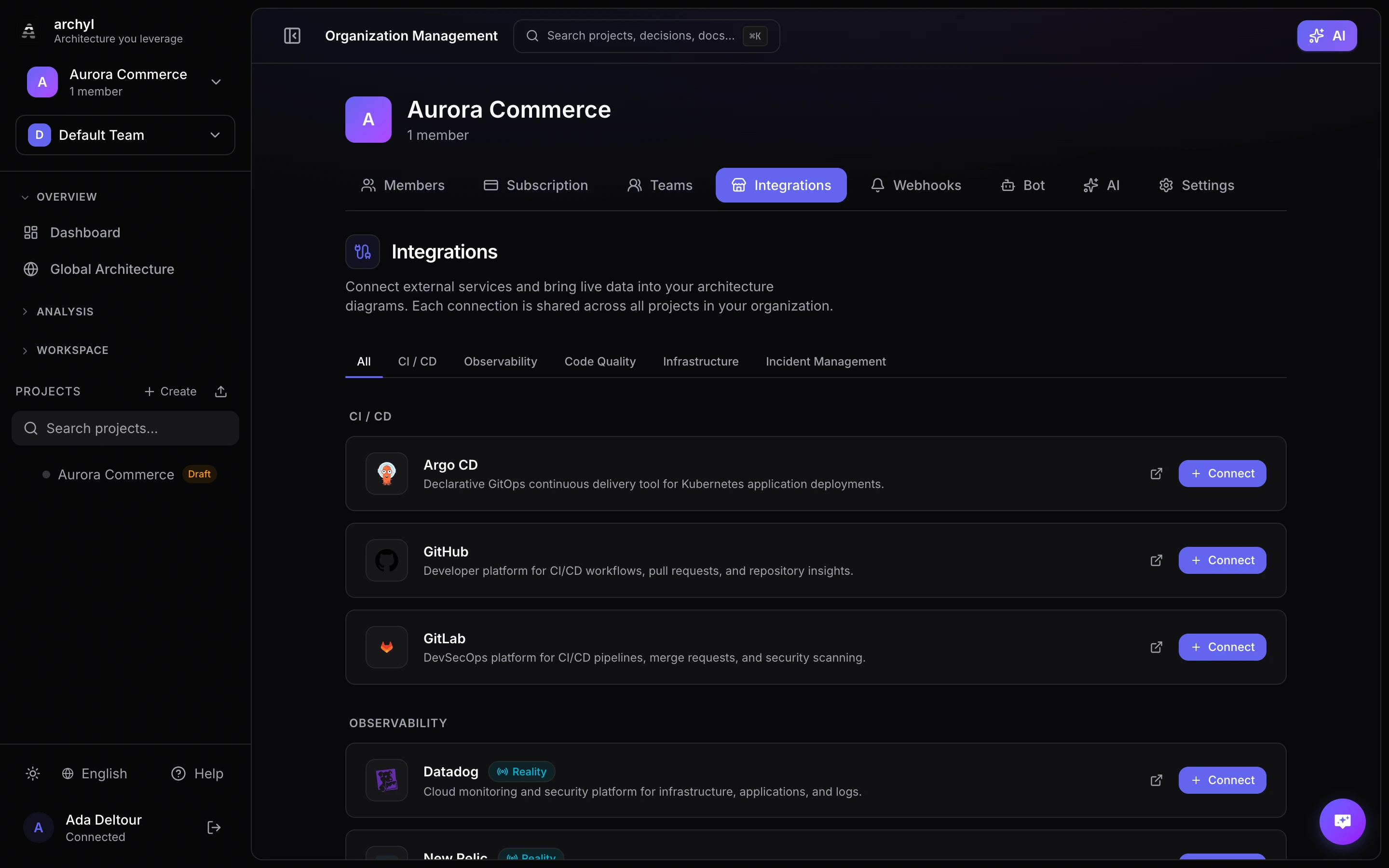
The Marketplace lets you connect external services to Archyl and surface their data as live widgets on your architecture dashboards. Monitor deployments, track code quality, watch metrics, and review security alerts — all directly alongside your C4 model.
Overview
Marketplace integrations work in three layers:
- Products — The external services available for integration (Datadog, GitHub, SonarQube, etc.)
- Connections — Organization-scoped credentials that authenticate with a product's API
- Widgets — Visual cards placed on project dashboards that display live data from a connection
A single connection can power multiple widgets across different projects. Widgets refresh automatically every 30 seconds.
Supported Products
Datadog
Monitor infrastructure and application health.
| Widget | Type | Description |
|---|---|---|
| Monitor Status | Status | Health status of Datadog monitors filtered by tag |
| Metric Query | Counter | Current value of a Datadog metric query |
| Active Alerts | List | List of currently triggered monitors |
| Embed Dashboard | Embed | Embedded Datadog dashboard or notebook |
GitHub
Track repositories, workflows, and security findings.
| Widget | Type | Description |
|---|---|---|
| Workflow Status | Status | Latest CI workflow run status |
| Open Pull Requests | List | Active PRs with status badges |
| Repository Stats | Counter | Stars, forks, open issues, or open PRs count |
| Dependabot Alerts | List | Open dependency vulnerability alerts |
| Dependabot Status | Status | Overall Dependabot alert severity |
| Secret Scanning Alerts | List | Detected secrets in the repository |
| Code Scanning Alerts | List | CodeQL or third-party code scanning findings |
| Code Scanning Status | Status | Overall code scanning health |
GitLab
Monitor pipelines, merge requests, and security scanners.
| Widget | Type | Description |
|---|---|---|
| Pipeline Status | Status | Latest pipeline run status |
| Open Merge Requests | List | Active MRs with status |
| Project Stats | Counter | Stars, forks, open issues, or open MRs |
| Vulnerability Alerts | List | Dependency scanning findings |
| Vulnerability Status | Status | Overall vulnerability severity |
| SAST Alerts | List | Static analysis findings |
| Secret Detection Alerts | List | Detected secrets |
| DAST Alerts | List | Dynamic analysis findings |
Prometheus
Query metrics and monitor targets.
| Widget | Type | Description |
|---|---|---|
| Instant Query | Counter | Current value of a PromQL query |
| Range Query | Graph | Time series line chart over a configurable range |
| Target Up Status | Status | Scrape target health by job name |
SonarQube
Track code quality and security analysis.
| Widget | Type | Description |
|---|---|---|
| Quality Gate Status | Status | Pass/fail status of the project quality gate |
| Project Measures | Counter | Coverage, bugs, vulnerabilities, code smells, tech debt, etc. |
| Issues | List | Bugs, vulnerabilities, and code smells by severity |
| Security Hotspots | List | Code locations requiring security review |
| Security Rating | Status | Overall security rating of the project |
ArgoCD
Monitor Kubernetes application deployments.
| Widget | Type | Description |
|---|---|---|
| Application Status | Status | Health and sync status of a single app |
| Applications List | List | All applications with health and sync indicators |
| Application Resources | List | Kubernetes resources for a specific application |
| Application Count | Counter | Total number of applications with optional filters |
PagerDuty
Monitor incidents, on-call schedules, and service health.
| Widget | Type | Description |
|---|---|---|
| Incident Status | Status | Overview of triggered and acknowledged incidents |
| Active Incidents | List | Currently active incidents with urgency and service |
| On-Call Now | List | Team members currently on call |
| Service Status | Status | Health overview of PagerDuty services |
| Incident Count | Counter | Total number of open incidents |
Setting Up a Connection
Connections are managed at the organization level. Only organization admins can create or modify connections.
1. Navigate to the Marketplace
Go to Organization Settings and select the Integrations tab. All available products are listed by category.
2. Add a Connection
- Find the product you want to connect
- Click Connect
- Enter a name for the connection (e.g., "Production Datadog" or "GitHub - Backend Repos")
- Fill in the required credentials
Each product requires different configuration fields:
| Product | Required Fields |
|---|---|
| Datadog | API Key, Application Key, Site URL |
| GitHub | Personal Access Token |
| GitLab | Personal Access Token, GitLab URL |
| Prometheus | Server URL |
| SonarQube | Token, Server URL |
| ArgoCD | Token, Server URL |
| PagerDuty | API Key |
3. Test the Connection
Click Test Connection before saving. Archyl will verify the credentials and display a success or error message. If the test fails, check:
- The API key or token has the required permissions
- The server URL is reachable from the internet
- The credentials haven't expired
4. Save
Once the test passes, click Save. The connection is now available across all projects in your organization.
Managing Connections
- Edit: Update the name or credentials of an existing connection
- Delete: Remove a connection. Widgets using it will stop working and show an error state
- Status indicators: Green (active), red (error), gray (disconnected)
You can create multiple connections to the same product — for example, separate connections for staging and production Datadog accounts.
Adding Widgets
Widgets display live data from your connections on project dashboards.
1. Open the Integrations Tab
In your project, navigate to the Integrations view. Click Customize to enter edit mode.
2. Add a Widget
- Click the Add Widget button
- Step 1 — Select Connection: Choose which connection to use. Connections are grouped by product.
- Step 2 — Choose Widget Type: Select the type of widget (status, counter, list, graph, or embed). Available types depend on the product.
- Step 3 — Configure: Set the widget title and product-specific options
3. Configure Widget Options
Each widget type has specific configuration fields:
GitHub widgets require:
- Owner: GitHub organization or username
- Repository: Repository name
- Severity (security widgets): Filter by alert severity
Datadog widgets require:
- Monitor Tags (monitor/alerts): Comma-separated tag filter
- Query (metric): Datadog metric query string
- Timeframe (metric): 1h, 4h, 1d, or 1w
- Embed URL (dashboard): Shared dashboard URL
Prometheus widgets require:
- Query: PromQL expression
- Timeframe (graph): 15m, 1h, 4h, 1d, or 1w
- Y-axis Label and Unit (graph): Optional display formatting
- Job Filter (target status): Scrape job name
SonarQube widgets require:
- Project Key: SonarQube project identifier
- Metric (measures): coverage, bugs, vulnerabilities, code_smells, etc.
- Severity and Issue Type (issues): Optional filters
ArgoCD widgets require:
- Application Name (status/resources): Single app name
- Application Filter (list/count): Regex pattern matching app names
- Project (list): ArgoCD project filter
- Health Filter (count): Healthy, Degraded, Progressing, etc.
PagerDuty widgets require:
- Service ID (incidents/status): Optional filter by PagerDuty service
- Escalation Policy ID (on-call): Optional filter by escalation policy
Widget Types
Counter
Displays a single numeric value prominently. Use for metrics like CPU usage, request count, coverage percentage, or star count.
- Large formatted number with optional unit
- Optional label below the value
- Adapts text size to widget dimensions
Status
Shows a health indicator with color coding. Use for CI status, quality gates, monitor health, or deployment sync state.
- Color-coded badge: green (ok), amber (warning), red (critical)
- Optional breakdown counts (ok, warning, alert)
- Contextual message when available
List
Displays a scrollable list of items. Use for pull requests, alerts, issues, or application inventories.
- Each item shows title, optional subtitle, and status badge
- Clickable items link to the external service
- Color-coded status badges (success, warning, error, critical, pending)
Graph
Renders a time series line chart. Use for Prometheus range queries or any metric over time.
- Multi-series support with colored lines
- Adaptive time axis formatting
- Hover tooltip with formatted values
- Optional Y-axis label and unit
Embed
Displays an external page in an iframe. Use for Datadog dashboards, Grafana panels, or any embeddable URL.
- Full iframe rendering
- Sandboxed for security
- Responsive to widget size
Organizing Widgets
Sections
Widgets are organized into named sections. The default section is General.
- Create a section: In edit mode, use the section input field to add a new section
- Rename: Click the pencil icon on a section header
- Delete: Click the trash icon. Widgets in the deleted section move to General
- Collapse/Expand: Click the chevron to toggle section visibility
Reordering
In edit mode:
- Drag widgets to reposition them within a section or move them to a different section
- Drag section headers to reorder entire sections
- Resize widgets from the bottom-right handle
Widget positions and section assignments are saved automatically.
Widget Grid
The grid uses a 12-column layout. Widgets can be resized from 1 column wide to the full 12 columns, and from 3 rows tall to any height. The grid compacts vertically — widgets stack upward to fill gaps.
Scoping
Widgets can be scoped at three levels:
| Scope | Visibility | Use Case |
|---|---|---|
| Organization | Visible across all projects | Company-wide dashboards |
| Project | Visible only in a specific project | Project-specific metrics |
| Element | Attached to a C4 element | Per-service monitoring |
Organization-wide widgets are configured from the top-level Integrations page. Project and element widgets are configured within the project's Integrations tab.
Troubleshooting
Widget shows "Invalid credentials"
The connection credentials have expired or been revoked. Go to Organization Settings > Integrations, find the connection, and update the credentials. Click Test Connection to verify.
Widget shows "Unable to load data"
The external service may be unreachable or the query may be invalid. Check:
- The service is up and accessible
- The query or filter configuration is correct
- The connection's API key has permission to access the requested resource
No connections available when adding a widget
Connections are created at the organization level. If you're not an admin, ask your organization administrator to set up a connection in Organization Settings > Integrations.
Best Practices
Name Connections Clearly
Use descriptive names that indicate the environment and purpose:
- "Datadog — Production"
- "GitHub — Backend Team"
- "SonarQube — Main Project"
Organize with Sections
Group related widgets into sections:
- "Monitoring" for Datadog and Prometheus widgets
- "Security" for SonarQube and GitHub security scanning widgets
- "CI/CD" for workflow status and deployment widgets
- "Incident Response" for PagerDuty incident and on-call widgets
Start with Status Widgets
Status widgets give you a quick health overview. Add counter and list widgets for more detail once you've identified the key metrics.
Use Element-Scoped Widgets
Attach widgets directly to C4 elements so your architecture diagrams show live operational context. For example, attach a GitHub workflow status widget to the container that represents your API service.
Next Steps
- Release Management — Track deployments across your architecture
- Architecture Insights — Detect architectural issues
- Flows — Visualize how data moves through your system