Release Management
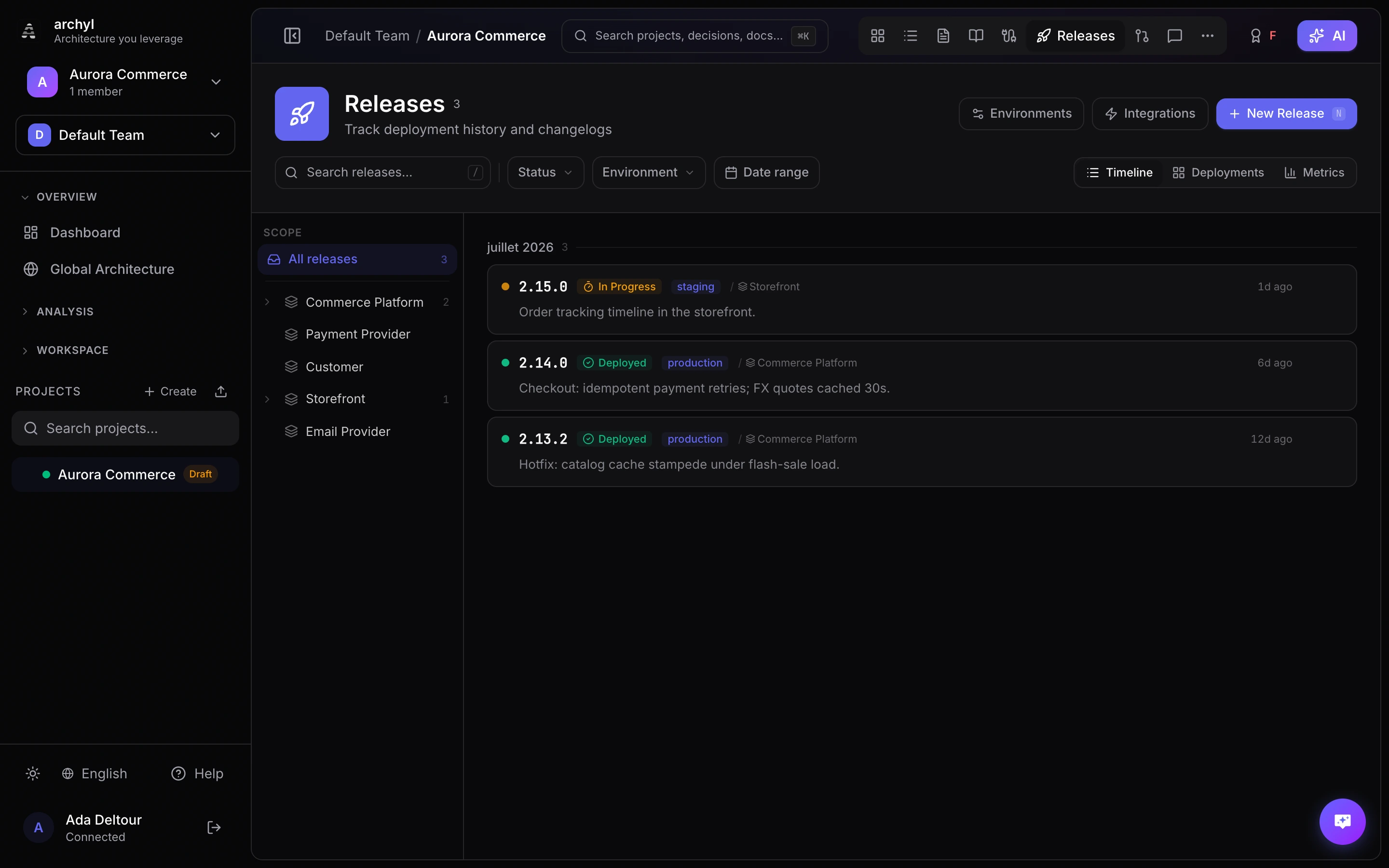
Release Management tracks deployments as first-class objects in your architecture workspace. Every release is linked to a C4 element, giving your diagrams a live view of what's actually running.
Core Concepts
Releases
A release represents a specific version deployed to an environment. Each release has:
| Field | Description |
|---|---|
| Version | Semver tag or identifier (e.g., v2.4.0, 3.12.0-rc.2) |
| Status | Current state in the deployment lifecycle |
| Environment | Target environment (Production, Staging, etc.) |
| Changelog | What changed in this release |
| Source | How the release was created (manual, API, GitHub Action, webhook) |
| Linked Element | The system or container this release belongs to |
Environments
Environments represent deployment targets. They are user-defined and color-coded.
Common setups include:
- Development → Staging → Production
- Dev → QA → Pre-prod → Production
Create as many environments as your workflow requires. Each release is tagged with its target environment.
Status Lifecycle
Releases move through these statuses:
| Status | Description |
|---|---|
| Planned | The release exists but hasn't been deployed yet. Useful for tracking upcoming versions. |
| In Progress | Deployment is underway. Set automatically by CI/CD integrations. |
| Deployed | The release is live in its target environment. |
| Failed | The deployment didn't succeed. The entry stays as a record of what was attempted. |
| Rolled Back | The release was deployed but subsequently reverted. |
Setting Up Release Tracking
1. Create Environments
- Go to your project's Settings
- Open the Releases tab
- Under Environments, click Add Environment
- Enter a name and pick a color
- Drag to reorder environments by deployment stage
2. Configure a Default Link Target
Set the system and optionally a container where releases should be attached by default:
- In the Releases settings tab, find Default Link Target
- Select a system from the dropdown
- Optionally select a container within that system
- This target is used when ingested releases don't specify an element
3. Choose an Integration Method
Archyl supports three ways to ingest releases automatically.
Integration Methods
GitHub Actions
Add the official Archyl GitHub Action to your deployment workflow.
Minimal setup:
- uses: archyl/release-action@v1
  with:
    api-key: ${{ secrets.ARCHYL_API_KEY }}
    version: ${{ github.ref_name }}
Full configuration:
- uses: archyl/release-action@v1
  with:
    api-key: ${{ secrets.ARCHYL_API_KEY }}
    version: ${{ github.ref_name }}
    environment: production
    system-id: <your-system-uuid>
    container-id: <your-container-uuid>
    changelog: "Bug fixes and performance improvements"
    status: deployed
The action sends the version, commit SHA, environment, and changelog to Archyl on every successful deploy.
Webhooks
Configure webhook ingestion to receive release events from GitHub or GitLab.
- In the Releases settings tab, enable Webhooks
- Copy the webhook URL displayed
- In GitHub or GitLab, add a new webhook pointing to that URL
- Select the Release or Tag push event type
Configuration options:
| Setting | Description |
|---|---|
| Tag Pattern | Filter which tags create releases (e.g., v* for tags starting with v) |
| Default Environment | Environment assigned to webhook-created releases |
| Webhook Secret | Shared secret for payload verification |
When a new release is published or a matching tag is pushed, Archyl creates a release entry automatically.
REST API
For any CI/CD tool that can make HTTP requests — Jenkins, CircleCI, Bitbucket Pipelines, or custom pipelines.
Endpoint: POST /api/v1/projects/:projectId/releases
Headers:
Authorization: Bearer <api-key>
Content-Type: application/json
Payload:
{
  "version": "v2.4.0",
  "status": "deployed",
  "changelog": "Added payment retry logic",
  "environmentId": "<environment-uuid>",
  "systemId": "<system-uuid>",
  "containerId": "<container-uuid>",
  "sourceUrl": "https://github.com/org/repo/releases/tag/v2.4.0"
}
The settings tab displays copyable code snippets with auto-populated API keys and element IDs.
Views
Release Timeline
The primary view. Releases are grouped by month in reverse chronological order. Each entry shows:
- Version badge
- Status indicator
- Environment tag (color-coded)
- Linked system or container
- Source (GitHub Action, webhook, API, manual)
- Relative timestamp
Click any release to open its detail panel with the full changelog, dates, and a link back to the source.
Filtering:
- By environment (e.g., show only production deploys)
- By status (e.g., show only failed deployments)
- By linked element
Deployment Matrix
A grid view for teams managing multiple services across multiple environments.
- Rows — Systems and containers
- Columns — Environments
- Cells — Latest release deployed for that combination
The matrix makes environment drift visible at a glance. When staging and production versions diverge, you spot it immediately.
Linking Releases to Architecture
Every release can be linked to a system, a container, or both.
Automatic Linking
When using GitHub Actions or webhooks, releases are linked to the default target configured in settings. You can override the target per release by specifying system-id and container-id.
Manual Linking
When creating a release through the UI:
- Click New Release
- Fill in version, status, and changelog
- Select the target system and/or container
- Choose the environment
- Click Create
Viewing on the Diagram
Right-click any element on the C4 diagram to open its detail panel. Linked releases appear in the Releases section alongside relationships, ADRs, and API contracts. The element shows its most recent release version and environment.
Creating Releases Manually
Not every release comes from a pipeline. To create a release by hand:
- Navigate to the Releases tab
- Click New Release
- Enter the version, select a status and environment
- Write a changelog (markdown supported)
- Link to a system and/or container
- Click Create
Manual releases have their source marked as Manual in the timeline.
Best Practices
Use Semantic Versioning
- Tag releases with semver (e.g.,
v1.2.3) - Include pre-release identifiers for non-production releases (e.g.,
v2.0.0-rc.1) - Keep version strings consistent across environments
Track All Environments
- Create environments for every deployment stage
- Don't skip staging — the deployment matrix is most useful when it shows the full pipeline
- Use the matrix view to catch environment drift early
Automate Ingestion
- Use GitHub Actions or webhooks instead of manual entry
- Set up the integration once and every deployment flows in automatically
- Reserve manual creation for hotfixes or exceptional deployments
Write Changelogs
- Include a meaningful changelog with every release
- Summarize what changed and why
- Link to related issues or pull requests when possible
Link to the Right Level
- Link to systems when deploying an entire application
- Link to containers when deploying individual services within a system
- Be consistent — choose a convention and stick to it
Next Steps
- API Contracts — Document your API specifications
- Architecture Insights — Detect architectural issues
- Architecture Change Requests — Propose changes through a review workflow