Ownership Map
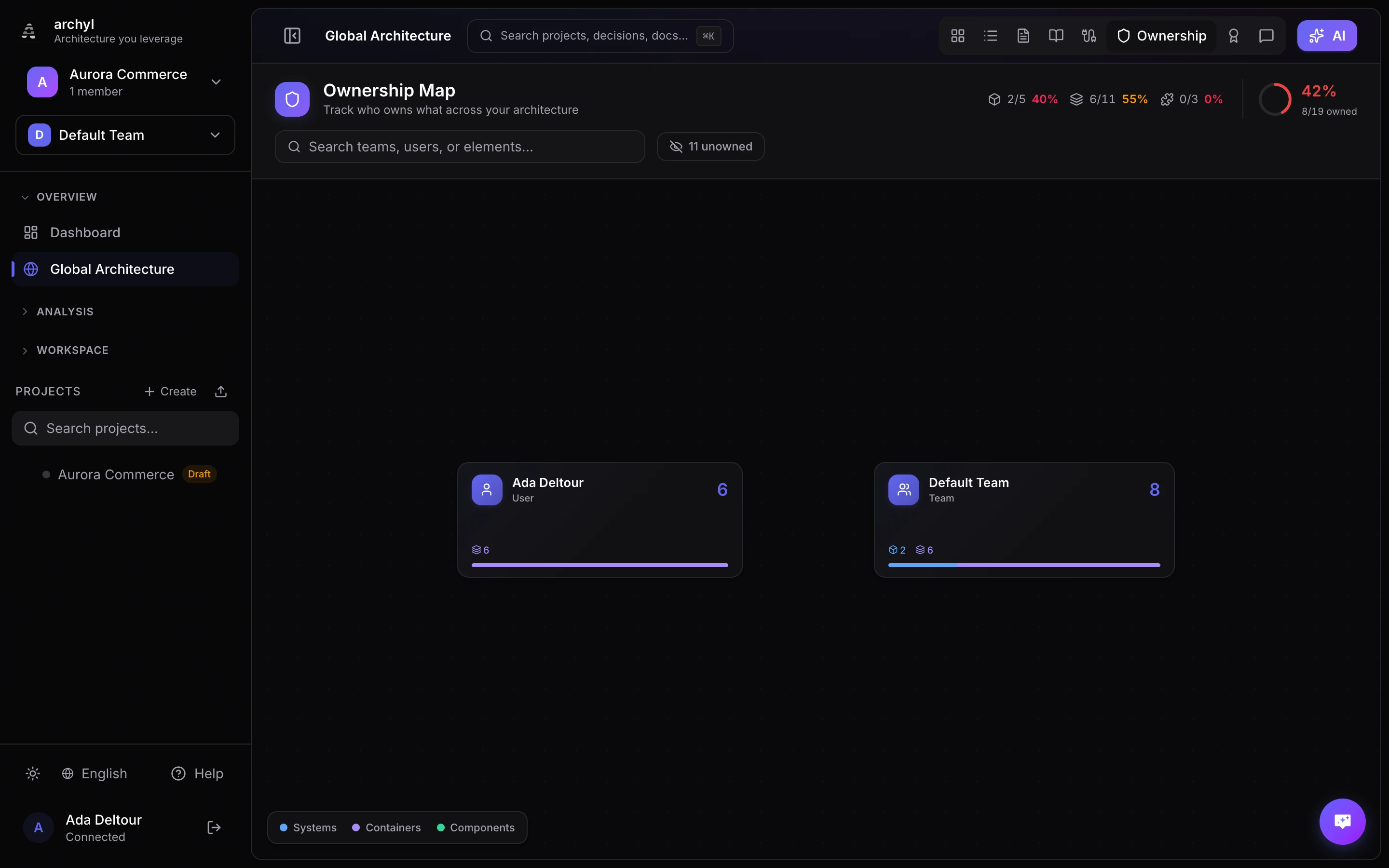
The Ownership Map gives you a bird's-eye view of who owns what across your entire architecture. Teams and users appear as interactive bubbles, sized by the number of elements they own. Hover to reveal dependency lines between owners, and click to drill into the elements each team or person is responsible for.
Core Concepts
Owners
Every C4 element (system, container, component) can be assigned to one or more owners:
| Owner Type | Description |
|---|---|
| Team | A team within your organization. Ideal for representing squads, guilds, or domain teams. |
| User | An individual user. Useful for solo maintainers or personal accountability. |
An element can have both team owners and user owners simultaneously. Elements without any owner are tracked as unowned and contribute to coverage gaps.
Coverage
Coverage measures how many of your architecture elements have at least one owner assigned. The ownership map header displays:
- Overall coverage percentage — colored green (80%+), amber (50-79%), or red (below 50%)
- Per-level breakdown — separate stats for systems, containers, and components
- Owned / total count — raw numbers for quick reference
Dependencies
When C4 relationships exist between elements owned by different teams, the ownership map draws dependency lines between those owners. This surfaces cross-team coupling — for example, "the Frontend team's services depend on the Platform team's API Gateway."
Dependencies are:
- Aggregated from individual C4 relationships into owner-to-owner edges
- Weighted by the number of underlying relationships (thicker = more dependencies)
- Shown on hover to keep the overview clean
Using the Ownership Map
Overview
Navigate to Global Architecture → Ownership tab. The overview shows all teams and users as colored bubbles:
- Bubble size reflects how many elements the owner is responsible for
- Bubble color is assigned automatically per team/user
- Team/user icon or avatar is displayed inside each bubble if available
The bubbles are positioned using a force-directed layout that naturally groups connected owners closer together.
Hovering
Hover over any bubble to:
- See a tooltip with the full owner name and element count
- Reveal dependency lines flowing to connected owners (with animated dashes and count badges)
- Dim unrelated bubbles so the ownership neighborhood stands out
Zooming In
Click any bubble to zoom into a detailed view of that owner's elements:
- A circular reveal animation transitions from the bubble to a full-screen detail panel
- The hero header shows the owner's icon, name, type (Team/User), and stats cards
- Stats cards act as filters — click "Systems", "Containers", or "Components" to show only that type
- Elements are displayed in a card grid grouped by C4 level, with:
- Element name and description
- Project name
- Co-ownership pills (other teams/users that also own this element)
- Press Escape or click Back to return to the overview
Searching
The search bar filters at the bubble level. Type any combination of:
- Owner name — e.g., "Platform" or "Alice"
- Element name — e.g., "API Gateway"
- Project name — e.g., "Payment Service"
Search uses fulltext matching: all terms must appear somewhere in the bubble's owner name, element names, or project names.
Unowned Elements
Click the unowned toggle in the header to reveal a special gray bubble containing all elements without any owner. This helps identify coverage gaps that need attention.
Assigning Ownership
Via the Diagram
- Right-click any system, container, or component on the C4 diagram
- Open the Owners section in the detail panel
- Click Add Owner and select a team or user
- The ownership map updates automatically
Via the Ownership Map Detail View
When zoomed into a team or user, the elements listed show their current ownership. Navigate to the element on its project diagram to modify owners.
Via the API
Use the element owner endpoints to programmatically assign ownership:
Set team owners:
PUT /api/v1/c4/systems/:id/owners
Content-Type: application/json
Authorization: Bearer <token>

{
  "teamOwnerIds": ["<team-uuid-1>", "<team-uuid-2>"],
  "userOwnerIds": ["<user-uuid-1>"]
}
The same endpoint pattern works for containers (/c4/containers/:id/owners) and components (/c4/components/:id/owners).
Best Practices
Assign Ownership Early
- Set team ownership when creating or discovering new systems
- Include ownership in your AI discovery review process
- Aim for 80%+ coverage across all C4 levels
Use Teams Over Individual Users
- Teams survive employee turnover — individual ownership creates knowledge silos
- Assign teams as primary owners and add individual users for accountability when needed
- Map teams to your organization's actual squad or domain structure
Review Cross-Team Dependencies
- Hover over each team periodically to check dependency lines
- High dependency counts between two teams may indicate tight coupling
- Use this insight to inform service boundary decisions and API contract work
Track Coverage Over Time
- Monitor the coverage percentage in the header
- Address unowned elements before they accumulate
- Treat 100% ownership coverage as a hygiene goal, not a one-time task
Next Steps
- Architecture Decision Records — Document decisions linked to owned elements
- Architecture Insights — Detect issues in elements your team owns
- Release Management — Track deployments for owned systems
- API Contracts — Document APIs between team boundaries