Notifications
Archyl notifies you in two ways, and they answer different questions.
- The inbox, behind the bell in the app header, holds what waits on you or answers something you did. It is on for everyone and needs no setup.
- Email notifications tell you about architecture changes across your organization. They are off until you turn them on.
For a recurring summary sent to a whole team, see the team digest. To send events to your own systems, see webhooks.
The inbox
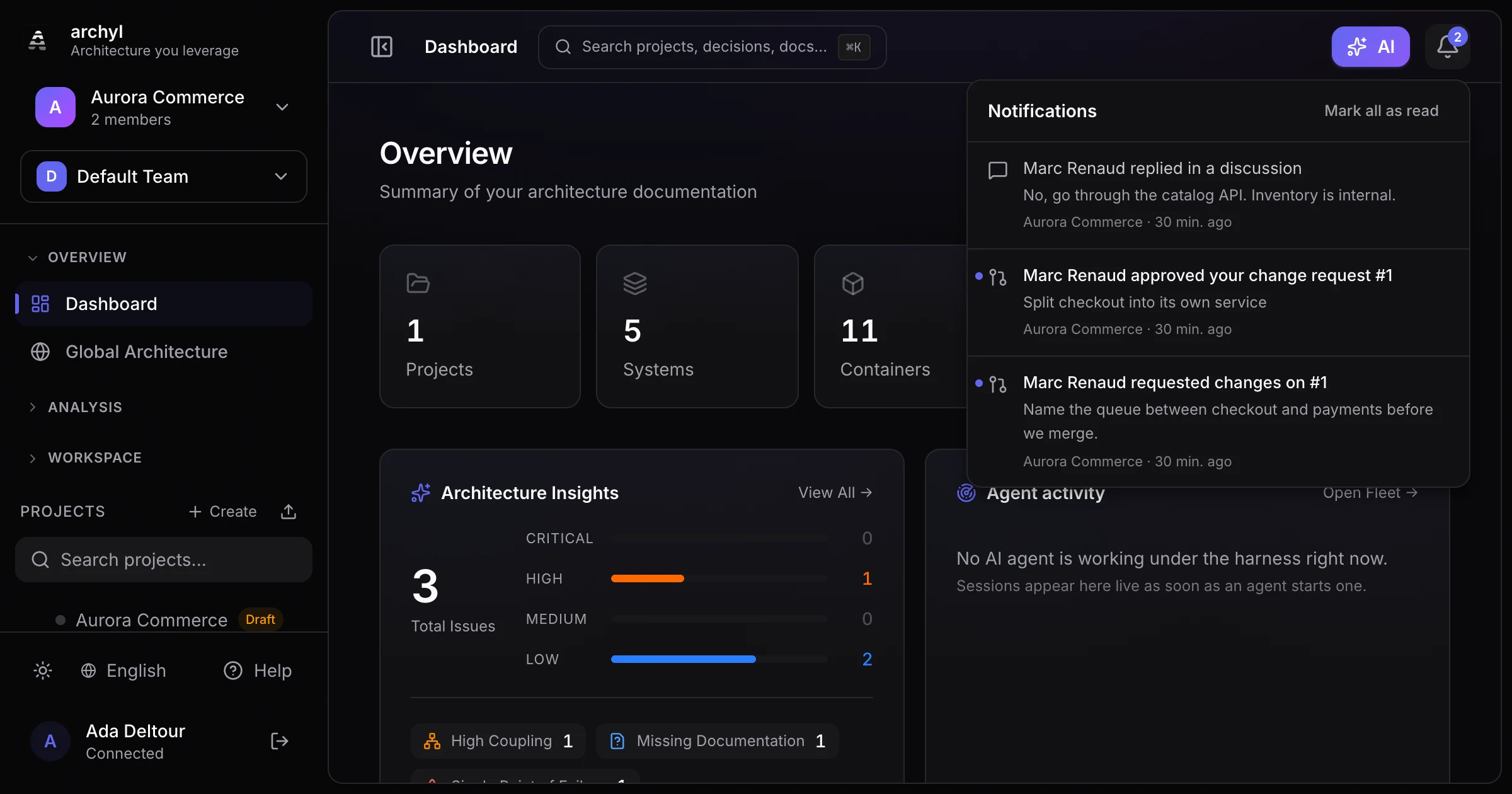
The bell sits at the right end of the header on every page. A number on it is your count of unread notifications.
Click the bell to open the inbox. Each line shows:
- a sentence saying who did what;
- an excerpt: the question an agent asks, the comment a reviewer left, the reply someone wrote;
- the project, and how long ago it happened.
Unread lines carry a dot. Clicking a line marks it read and opens the page it is about. To clear lines without opening them, hover one and click Mark as read, or use Mark all as read at the top of the panel.
What sends a notification
The inbox is not an activity feed. A notification is created only when something is blocked until you act, or when it answers something you started.
Managed agent runs notify the person who launched the run.
| What happened | You are told |
|---|---|
| The agent asks a question or proposes a plan to approve | An agent is waiting for your answer |
| The run finished | Your agent run finished |
| The run failed | Your agent run failed, with the error |
A run that someone cancelled sends nothing.
Architecture change requests notify reviewers, then the author.
| What happened | Who is told |
|---|---|
| A change request is opened | Everyone who can edit the project, except its author |
| A reviewer approves it, requests changes, or reviews it with a comment | The author |
| It is merged or closed | The author |
Discussions notify on replies. A reply reaches the person who started the discussion and everyone who already replied in it.
Mentions notify the people you name. Type @ in a comment, a decision, a documentation page, a change request or a review to pick a person or a team; everyone named is told, and a team reaches its members who can open the project. Only people who can open the project can be mentioned. See Mentions, citations and links.
Following notifies you about what you follow: changes to an element, a decision or a project, new comments on them, and change requests that touch them. Owners follow their elements automatically. See Following.
Tasks notify the assignee when a comment is turned into a task for them, and the person who created a task when someone else completes it. See Tasks.
You are never notified of your own actions.
The To do tab
Next to Notifications, the To do tab lists the tasks assigned to you, with the ones due soonest first. The number on the tab is your count of open tasks. Tick a task to complete it, or click it to open its discussion.
How it behaves
- One inbox per organization. If you belong to several, the bell shows the one you are working in.
- Your language. The sentence on each line follows the language of your interface. Excerpts stay in the language they were written in.
- Refresh. The unread count is refreshed every 30 seconds and when you come back to the tab, so a new notification can take up to half a minute to appear.
Current limits
- A change request opened by an agent through the MCP server does not notify reviewers yet.
- You cannot turn off one kind of notification.
- Mentions, follows and tasks notify in the inbox only, not by email.
Email notifications
Email notifications cover the wider picture: every tracked change in your organization, such as a system created, an ADR updated, a release deployed or a change request merged. Each person chooses whether to receive them.
To turn them on:
- Open your profile from the user menu.
- Go to the Notifications tab.
- Switch on Email notifications.
- Optionally narrow what you receive:
- Event types: leave empty to receive every event, or pick the ones you care about.
- Projects: leave empty to cover all projects, or pick specific ones.
- Click Save.
Like the inbox, email notifications skip your own actions: you are not emailed about a change you made.
Which one should I use?
| You want to | Use |
|---|---|
| Know when an agent, a review or a reply is waiting on you | The inbox |
| Follow every change made to some projects | Email notifications, filtered to those projects |
| Give a team a regular summary without anyone logging in | The team digest |
| Post changes to a channel or trigger your own automation | Webhooks |
| Ask questions about the architecture from chat | The Slack and Teams bots |