Real-Time Collaboration on C4 Diagrams and Global Architecture
A few weeks ago, we launched real-time collaboration on whiteboards. The response was immediate and clear: teams loved seeing each other's cursors, loved the presence indicators, loved watching architecture take shape together. But the most common request? "Can we get this on the actual C4 diagrams too?"
Fair question. Whiteboards are great for brainstorming, but the real architecture lives in your C4 models—the systems, containers, components, and code elements that define how your software is structured. That's where teams spend most of their time. That's where collaboration matters most.
Today, we're making it happen. Real-time collaboration now works on Project C4 Diagrams and the Global Architecture view.
Same Magic, Where It Counts
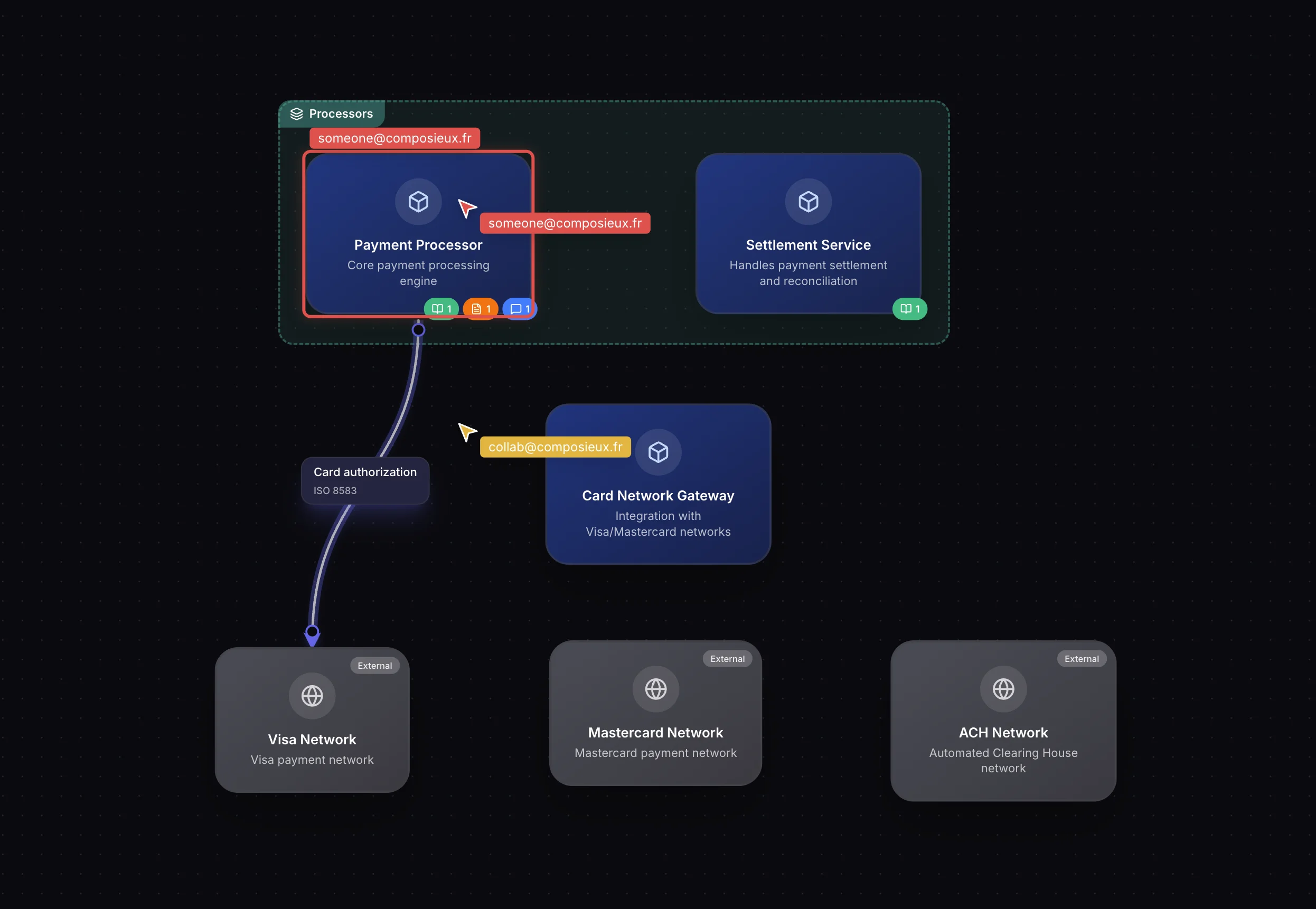
If you've used whiteboard collaboration, this will feel instantly familiar. Open a project's diagram view, and when a teammate opens the same project, their cursor appears on your canvas. A colored arrow with their name gliding across the diagram as they explore your architecture.
Select a system node, and everyone sees it highlighted with your color—a subtle border around the element, your name above it. Your teammate selects a different container? You see their selection in their color. The visual language is simple: you always know who is looking at what.
The avatar stack appears in the bottom corner. You see who's here. A notification pops up when someone joins your session. It all just works.
Collaborating Across C4 Levels
Here's where things get interesting. C4 models are hierarchical—you might be working at the System level while your colleague is deep in the Component level of a specific container. Both of you are editing the same project, but you're looking at different depths.
We track this through metadata. Each collaborator's session carries information about which C4 level they're currently viewing. This means you can see not just that Sarah is in the same project, but that she's working at the Container level while you're at the System level. The presence indicators keep you aware of each other without the noise of showing cursors on a view you're not even looking at.
When two people are on the same level, cursors and focus highlights appear naturally. When they're on different levels, the collaboration stays in the background—present but not distracting.
Global Architecture: Cross-Project Collaboration
The Global Architecture view shows all your organization's systems in one place. It's where you see the big picture—how projects connect, where the boundaries are, which systems talk to each other.
Now you can explore that view together. Open Global Architecture and your teammates see your cursor moving across the organizational landscape. Select a system to examine it, and everyone sees your focus.
We added view-scoped filtering here because the Global Architecture view has two depth modes—systems and containers. If you're looking at the systems overview and your colleague has drilled into the container view, you won't see each other's cursors. You're effectively on different canvases. Switch to the same depth, and the collaboration comes alive again.
This is the kind of detail that makes collaboration feel natural rather than noisy. You see what's relevant to your current context.
Changes Sync Automatically
Collaboration isn't just about seeing cursors. When a teammate adds a new system, moves a container, or updates a relationship, your diagram refreshes automatically. You don't need to hit reload. You don't need to ask "did you save?"
We use versioned operations under the hood. Every change increments a version number. Your client polls for new versions every second and, when it detects a change, refetches the relevant data. It's simple, reliable, and works behind any proxy or firewall—no WebSocket connections to worry about.
The result is a shared working surface where everyone's changes appear within a second or two. Fast enough for active collaboration, without the complexity of real-time character-by-character sync that you'd need for a text editor.
A Unified System
One of the decisions we're most pleased with is the unified collaboration model. Whiteboards, Project C4 Diagrams, and Global Architecture all run on the same infrastructure. One service, one set of database tables, one set of endpoints.
Under the hood, every collaboration session is identified by a resource type (whiteboard, project, or global) and a resource ID. The cursor tracking, presence detection, operation versioning, and cleanup jobs are shared. This means improvements to one resource type benefit all of them automatically.
It also means extending collaboration to new areas in the future—flows, documentation, ADRs—is a matter of connecting the existing infrastructure to new views, not building something from scratch.
Ten Colors, Zero Confusion
Every collaborator gets assigned a unique color from a palette of ten accessible, distinct hues. The assignment is deterministic based on join order, so if you leave and rejoin, you get the same color (assuming your slot hasn't been taken). Your cursor, your element highlights, your avatar ring—all use the same color.
We tested this across various display types and color vision profiles. The palette was chosen so that every pair of colors is distinguishable, even for people with common forms of color blindness. Architecture is about communication; the tools shouldn't introduce ambiguity.
Use Cases We're Seeing
Architecture reviews: A tech lead walks through the C4 model with the team. Everyone follows along on their own screen, clicking on elements they have questions about. The lead sees where attention concentrates and adjusts the discussion accordingly.
Onboarding: A new engineer explores the architecture with a senior teammate. Instead of a slide deck, they walk through the living diagram together. The senior engineer selects systems and explains them in real-time. The new hire clicks around and asks questions about what they see.
Planning sessions: Two teams are discussing an integration. Each team has their own project, but they open the Global Architecture view together to see how their systems will connect. They can point at specific systems and discuss boundaries with everyone looking at the same thing.
Distributed design: A backend engineer adds new components to a service while a frontend engineer reviews the API container they'll be consuming. Both are in the same project, working on different parts, aware of each other's progress.
Getting Started
Real-time collaboration on C4 Diagrams and Global Architecture is available now on all plans that support team features. There's nothing to configure—just open a project or the Global Architecture view, and collaboration is active as soon as a teammate opens the same view.
Your architecture is a team artifact. Now your tools reflect that.
New to collaborative architecture? Read how we built Whiteboard Collaboration for the full story, or explore AI-Powered Architecture Discovery to automatically generate the architecture your team can collaborate on.